Stock Addressing · Odoo 19.0
Daily work with the scanner
Every task on the scanner is the same three scans: where you take it from, what you take, and where you put it. This page shows how that works in everyday situations: moving an item, receiving goods, putting away the basket and counting a bin.
Three scans and the step colours
The screen always says, in big letters, which scan it is waiting for, and colours the prompt by step:
- violet-blue — «Scan where you take it FROM»;
- blue — «Scan the ITEM»;
- orange — «Scan where you PUT it»;
- green — the item is placed;
- red — a mistake to fix.
The home screen has the tiles «Move an item», «Receive goods», «Basket and returns», «Unfinished transfers» and «Stock count». The number on a tile is the work waiting. Scan any bin or item to see what lies there, or where that item lies.
Moving an item
- Scan the place you take from.
- Scan the item — the line shows «Place not scanned yet».
- Scan the place you put it into. The line turns green and shows the bin’s code.
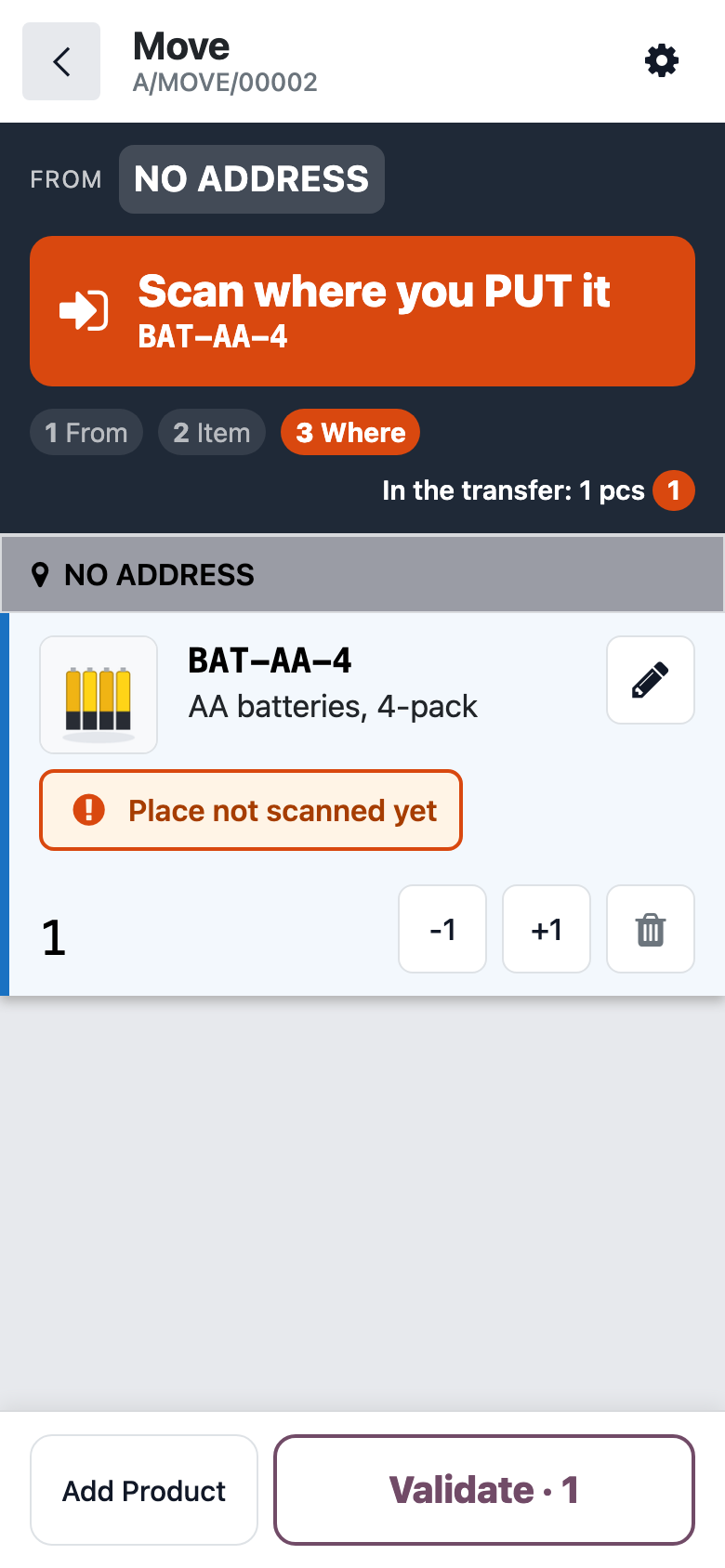
The source is remembered: for the next item from the same place, just scan the item and where it goes. Finish with the button at the bottom (it shows the number of units) or by scanning the «Validate» barcode.
Only a final place is accepted as the destination — a bin or the forward area. A rack’s or a zone’s label is refused at the scan, before anything is validated.
Receiving goods and the home bin
The «Receive goods» tile shows how many receipts are ready. Open one, scan an item, and the line suggests its home bin: «Put here — scan the label». The home bin is where this item usually lives, so nobody has to remember the whole warehouse.
If you scan another bin of the same zone, the scanner asks: «Yes, put it here» or «No — I will scan another place». The forward area, the basket and returns never ask — that is an item’s normal path.
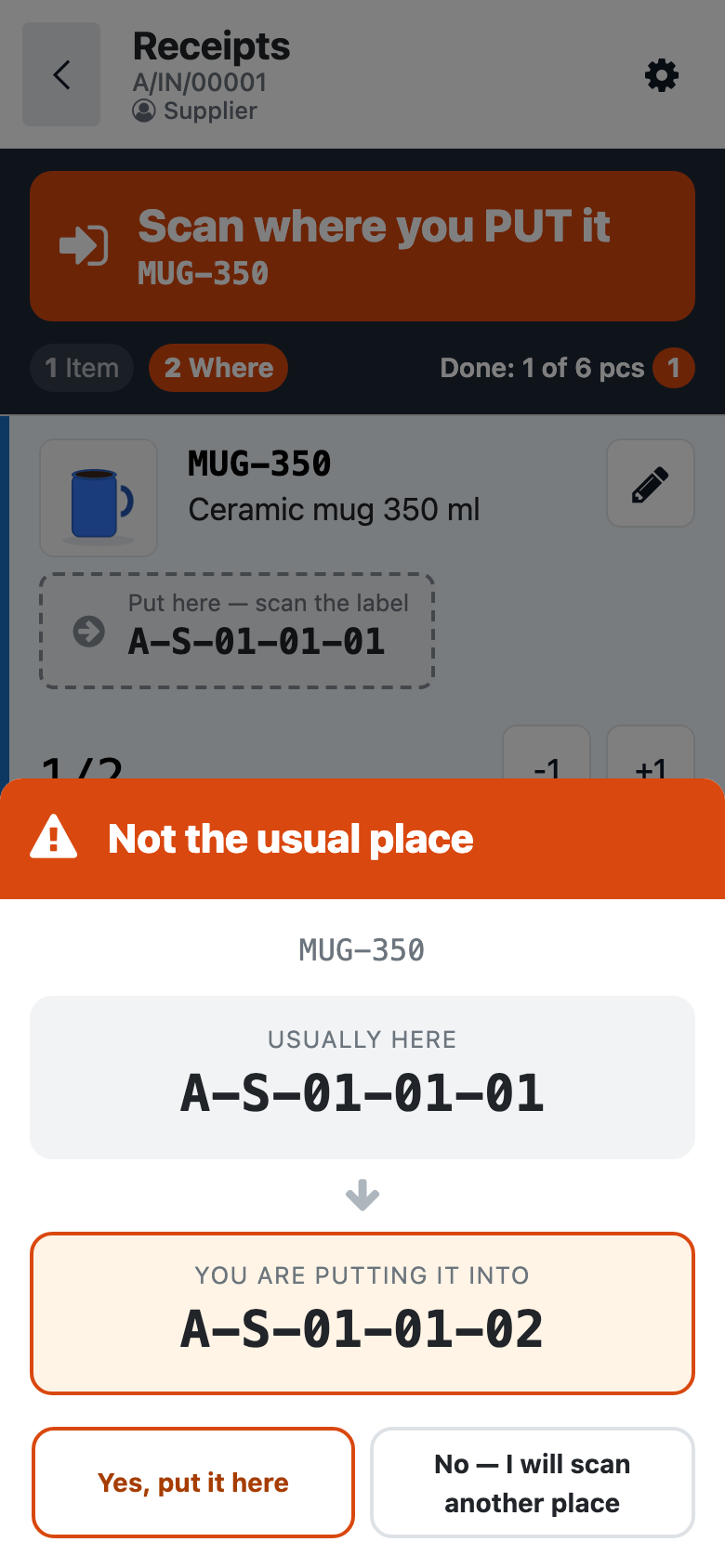
The counter «Done: 1 of 6 pcs» shows how much of the receipt is already in.
Basket and returns: putting away
The «Basket and returns» tile shows how many units wait to be put away. Tapping it prepares a transfer for each place (basket, returns) with the home bin already set for every item, and opens it.
- Scan the item, then the suggested bin.
- An item without a home bin shows no suggestion: put it where it belongs, and that bin becomes its home.
- Items that reach the basket later are added to the open transfer instead of starting a new one.
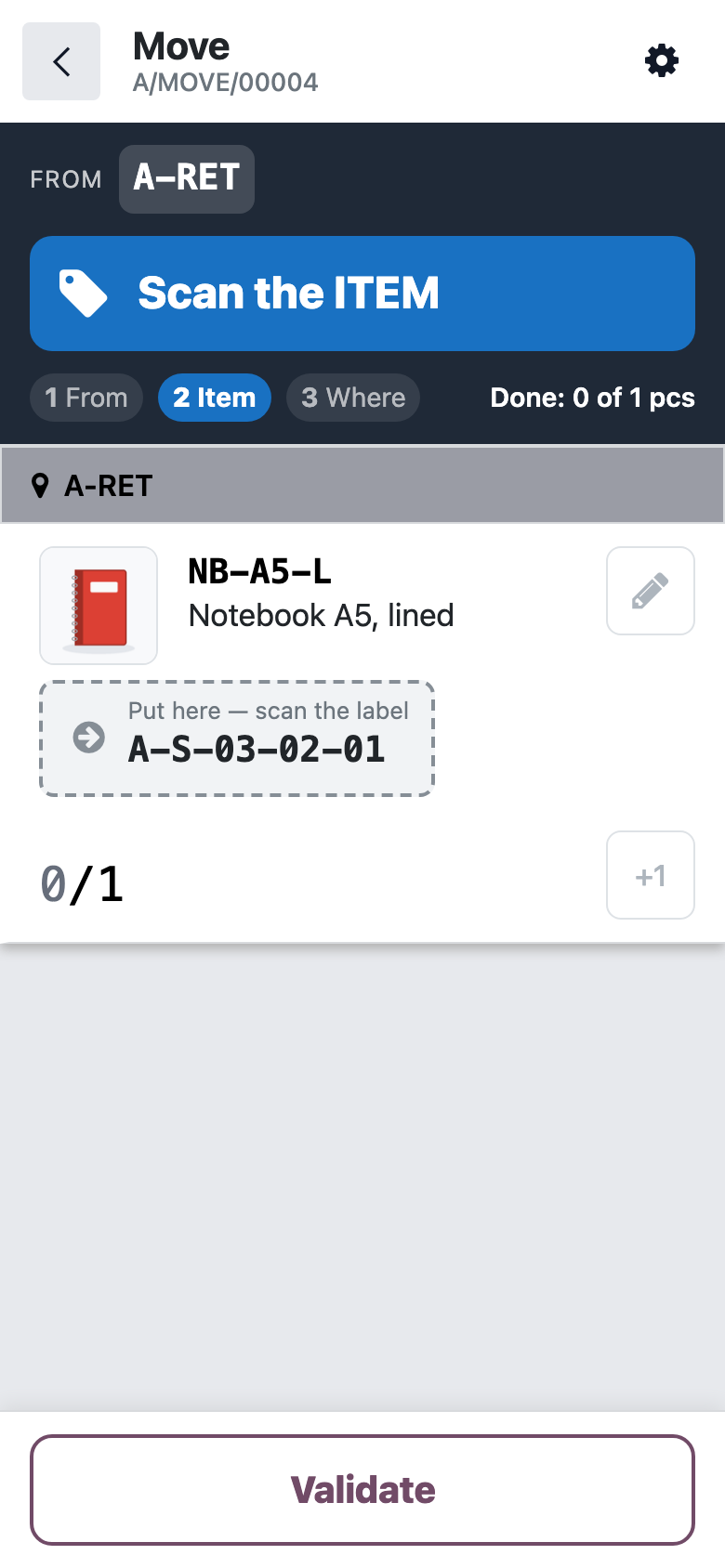
A prepared transfer reserves the items, so tap the tile when you are about to carry them. A transfer left idle too long shows up in a reminder: carry its items or cancel it.
Counting a bin
The «Stock count» tile shows how many places are worth counting today. The list is built in the morning, the riskiest places first, each with its reason: a negative, a refused validation, moves since the last count, or not counted for a long time.
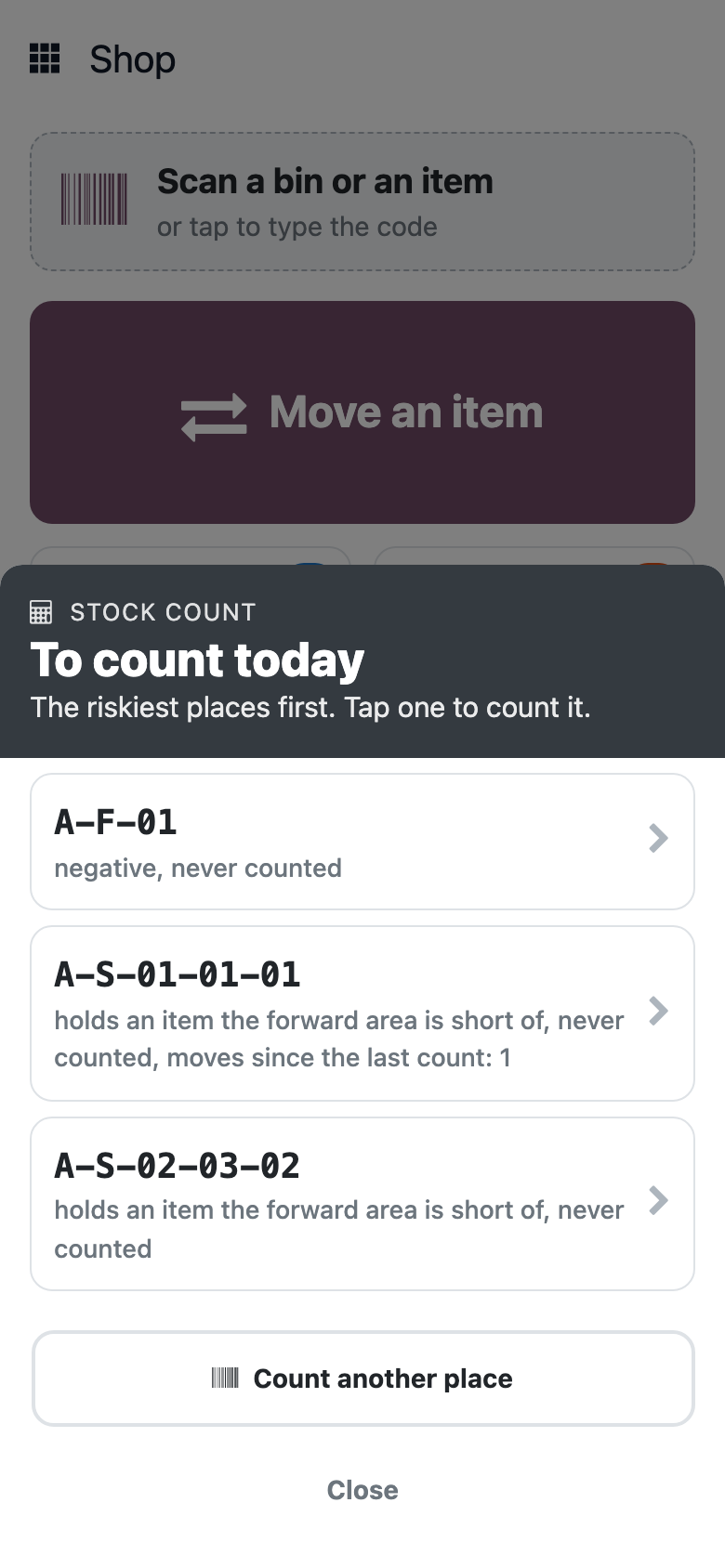
- Tap a place in the list, or press «Stock count» on a bin’s card.
- Scan every item in the bin.
- Press «Confirm» — the differences are applied.
If the system expects items nobody scanned, the scanner first asks: «Not there — count as 0» or «Back to scanning». A bin the system thinks is empty asks at once: «Yes, empty — counted» or «No, something is there — count it».
When you take the last unit of an item from a bin, the scanner asks: «Yes, none left» or «No, some are left — count it». That way a mistake shows up at once, not at the next stocktake.