Stock Addressing · Odoo 19.0
Setup
From an empty warehouse to printed labels takes about ten minutes; the first working day starts once the shelves are scanned in. This page covers addresses, labels, the scanner and the daily routine.
Before you start
You need the Inventory app with Storage Locations turned on (Inventory → Configuration → Settings). The scanner part needs Barcode (Odoo Enterprise), the till part needs Point of Sale; both install themselves.
Step 1. The address wizard
- Open the warehouse (Inventory → Configuration → Warehouses), the Addressing tab, and press Set Up Addresses.
- Under Address, set the warehouse prefix and the storage zone code; the picture shows what a bin code will look like.
- Describe the storage zone: one row per group of identical racks — racks from and to, shelves, bins per shelf. Racks 01–04 with 4 shelves of 3 bins and racks 05–06 with 3 shelves of 6 are two rows. With 0 shelves the rack is the bin; with 0 bins the shelf is.
- Under Around it, switch on what you have: the forward area (sales floor or pick area, optionally split into sections), the hand-over basket for items taken out and not handed over, and Returns.
- Check the summary: how many places will be created and how many exist. Red means something would stop the run, amber means something will change.
- Press Apply: the places are created and addressing is switched on.
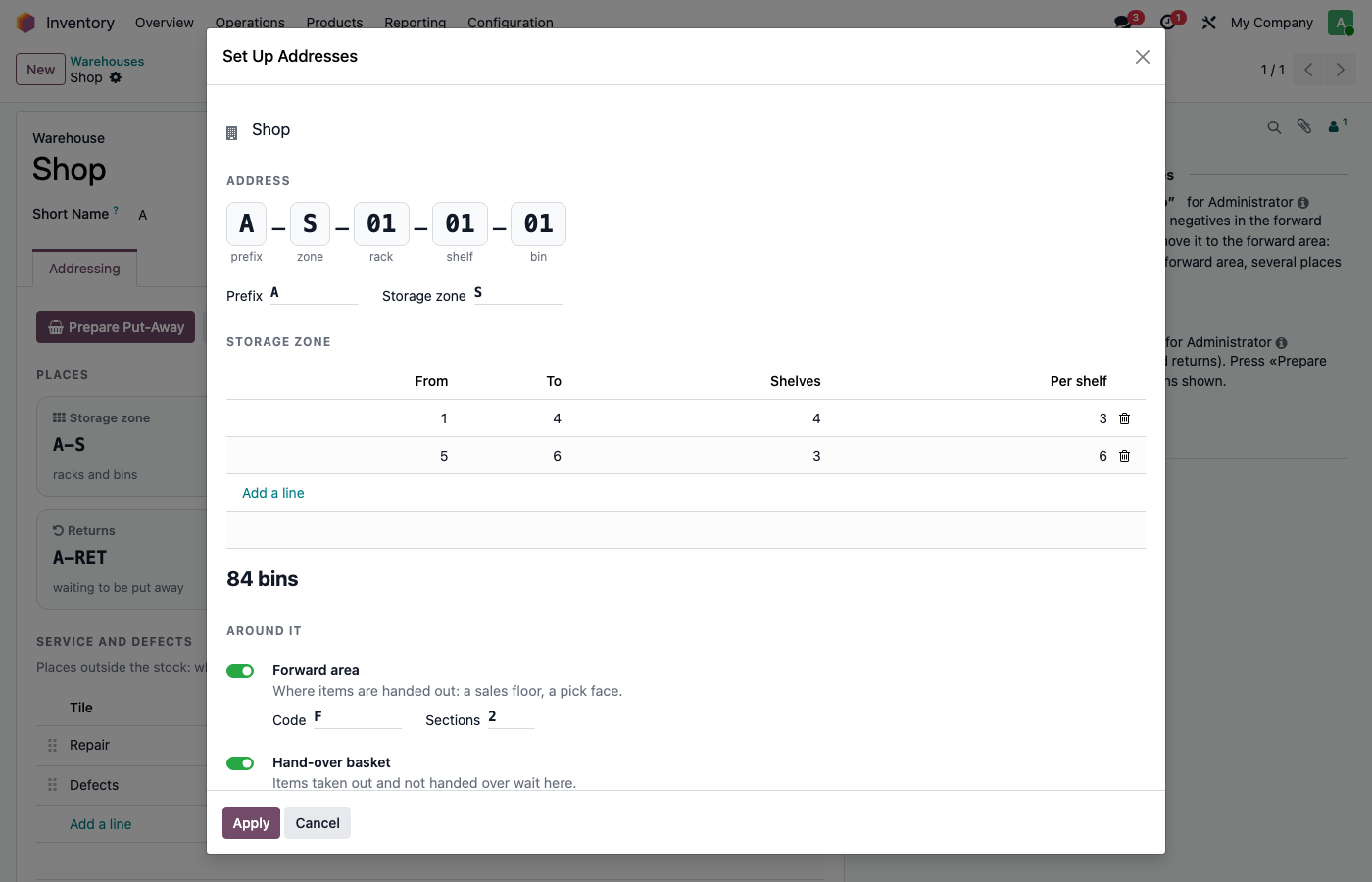
Run the wizard again to add or change racks: it adds only what is missing. Existing places whose codes match are taken over with their stock and barcodes.
Step 2. Service, defects and rules
- Under Service and defects, add places outside the stock: service or repair (items come back) or defects (items leave for good). Each row becomes a scanner tile. Leave the place empty to have it created, or pick another warehouse’s place, such as one collecting defects from all shops.
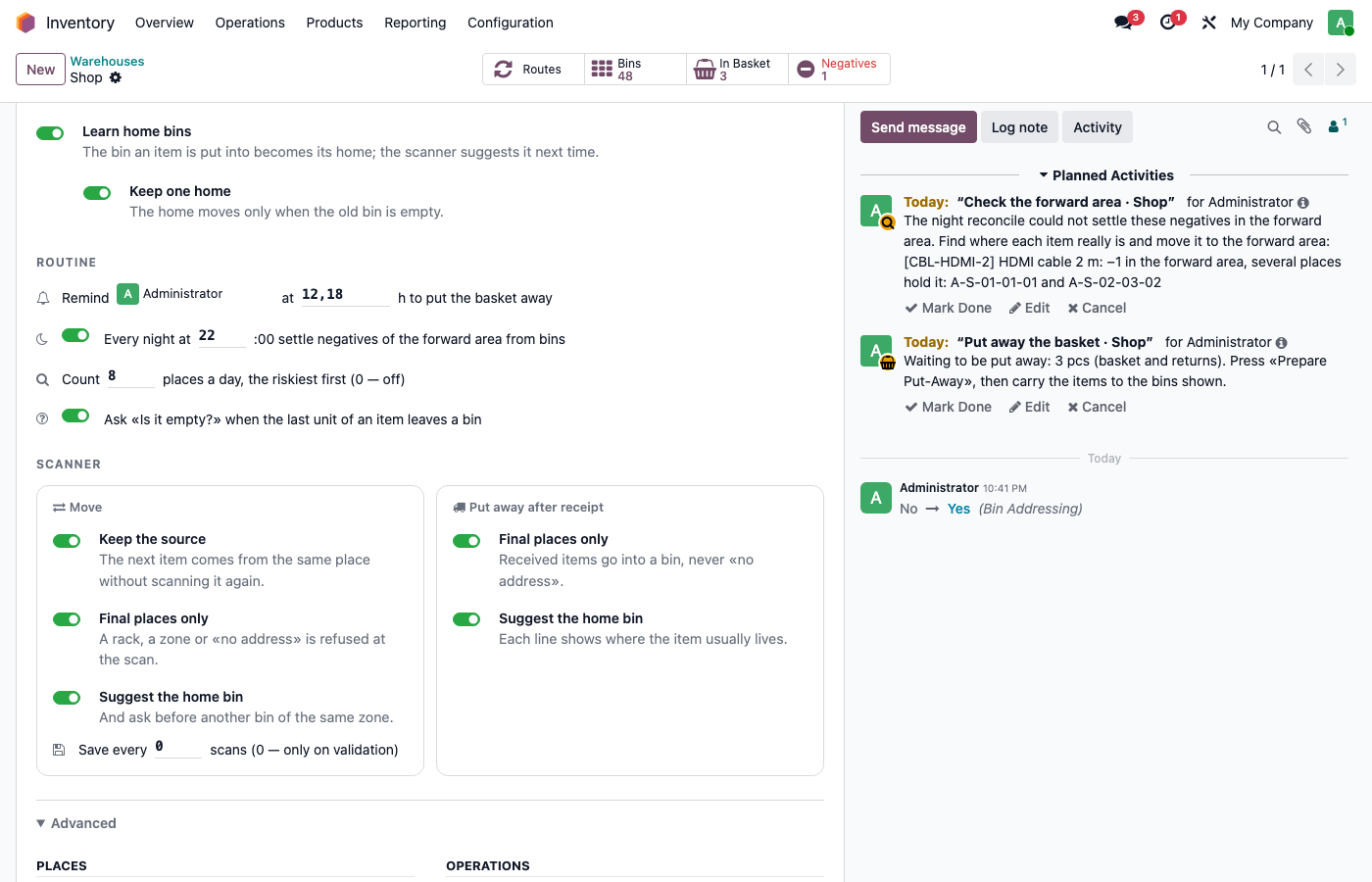
- Review the Rules: each switch is one rule, explained in one line.
- Under Routine, set who is reminded to put the basket away and when, the nightly hour to settle forward-area negatives, places to count per day (0 — off) and whether to ask “Is it empty?” when a bin’s last unit leaves.
- Under Advanced, check the time zone: reminder and reconcile hours follow it.
Step 3. Labels
- Press Print Labels on the warehouse tab, or Labels on the warehouse board.
- Choose racks (optionally with rack labels), the forward area and service places, the “No address” label, or everything.
- Press Print: a PDF opens with one 80×50 mm label per page.
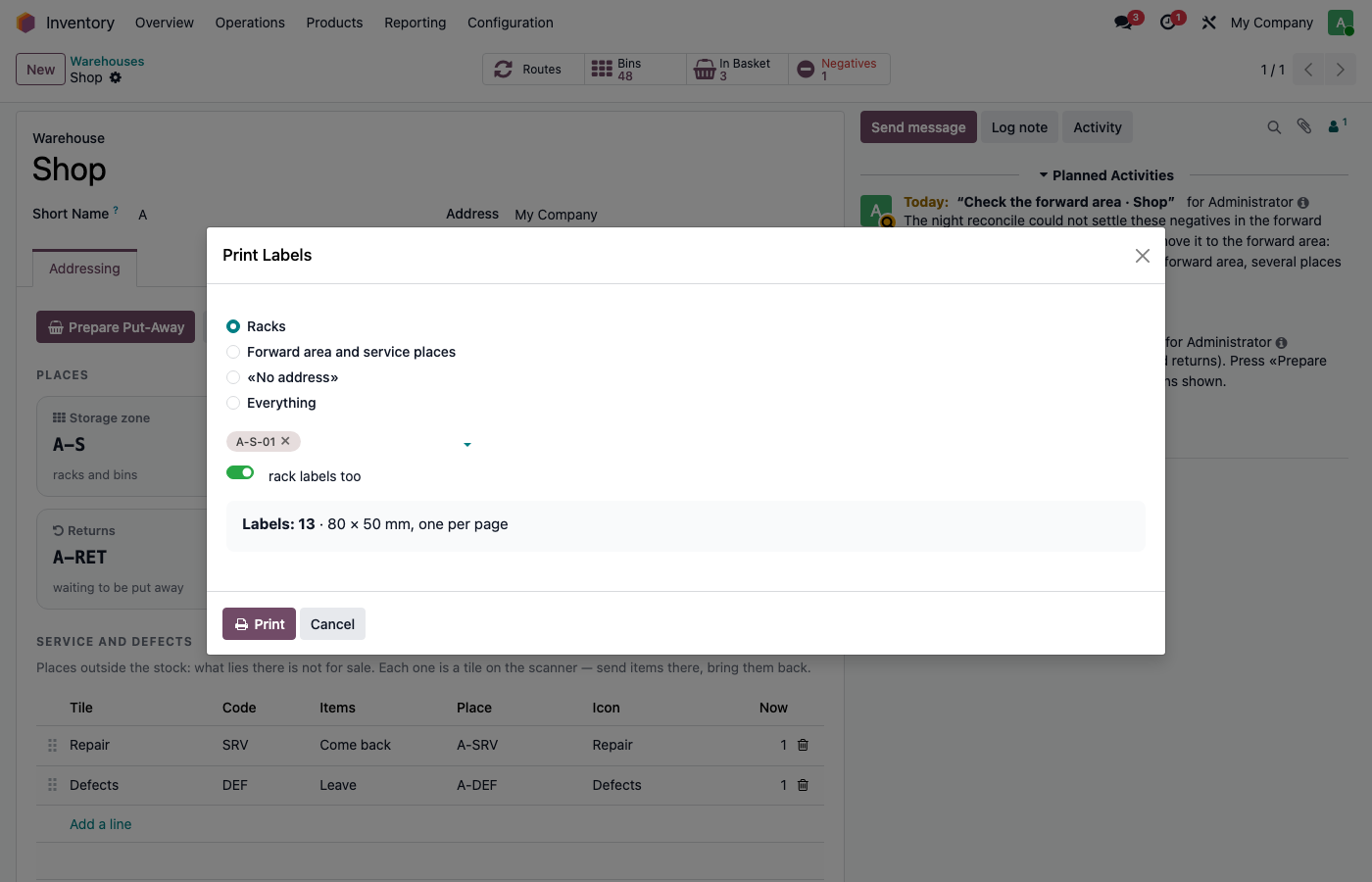
The “No address” label is scanned for items found without a place. Any list of places also offers Print → Address Labels (80×50).
Step 4. The scanner
With Barcode installed, the warehouse tab gains a Scanner section with switches for two operations: Move and Put away after receipt. The scanner suggests the home bin and accepts only a final place — never a rack, a zone or “No address”.
Step 5. The first working day
- Sort the storage zone and label racks and bins. All stock is still “No address”.
- Scan the shelves in. For each bin, on the scanner: Move → scan the “No address” label → scan each item → scan the bin → Validate. The first bin of each item becomes its home.
- Scan the forward area the same way.
- Fix whatever is still “No address” with a single inventory adjustment.
- Only now, if you have a till, switch on “Point of sale sells from the forward area”. Earlier, every sale would leave a negative.
- For the first two weeks, look at the warehouse board every morning.
The daily routine
- Moving to the floor. An item brought from a bin to the forward area is moved on the scanner; skipping this creates negatives.
- Reminders. At the set hours the responsible person is asked to put the basket and returns away; Prepare Put-Away fills in the home bins.
- Night reconcile. Forward-area negatives are settled from the only bin that holds the item; items in several places go to a list to check. Put the basket and returns away before the reconcile hour.
- Counting. The To count today tile lists today’s places, the riskiest first: count them or mark the empty ones.